Practicing an exercise
Playing along with the roll: starting, the signs on the roll and strip, tempo, click, hearing it first, and what happens when a spot keeps catching.
The practice screen
Section titled “The practice screen”This is where you play an exercise. Blocks travel along the roll towards a cyan line, the bar strip shows the whole exercise at once, and a picture of the keyboard shows the keys the current chord wants.
The first time you open an exercise whose shapes are new to you, it may open in Shapes first, an untimed step where your hand finds each new shape, and then hand over to this screen. Exercises that ask you to play freely open in Playing freely instead.
Phone, iPad and turning the screen
Section titled “Phone, iPad and turning the screen”On iPhone the practice screen turns sideways and stays that way while the roll is up, so a cable stays out of the way. The controls sit together in one narrow strip of buttons, so the roll keeps its width. When the strip is taller than the screen, the last button shows only half: scroll the strip to reach the rest. When you leave, the home screen follows how you hold the phone; every other screen stands upright.
On iPad the screen follows how you hold it. In a tall window the exercise’s title and instructions get their own space. In a wide window the roll gets the room, and with enough width the coach sits alongside it.
What you are about to play
Section titled “What you are about to play”The title names the exercise in numbers, such as “1 – 5 – 6m – 4”, and its key. On a wide screen the same chords also appear by name, such as “C – G – Am – F”, except at the largest text sizes, where the chord labels on the roll carry the names instead.
Before you start, the coach says why this exercise is here, and why the key differs from today’s plan, if it does. In a tall window the instructions follow separately. On a wide screen the coach also says the instructions for an exercise you haven’t met, and the line stays until the roll moves. hides a coach line until the next exercise.
The numbers, explained
Section titled “The numbers, explained”Tap the title, the key name or to open The numbers; in Shapes first, tap the key name or . It pauses the run and explains, in the exercise’s own key, what each number means: every key has seven notes, numbered from its home note, so “1 – 4 – 5” is the same move in every key. A key’s own notes can include black keys: A major, for one, uses C♯, F♯ and G♯.
It lists the seven chords of the key by number and by name, explains the chord symbols, and ends with a switch for how black keys are named. Swipe it away to carry on.
Chord labels and symbols
Section titled “Chord labels and symbols”Each chord on the roll carries a label such as “1 · C” or “6m · Am”: the number is the chord’s place in the key, and the name is the chord you may know from a songbook.
What follows the number says which flavor: a small m means minor, and a 7, maj7, (7) or a 9 adds a note on top. A short card explains this the first time. To see numbers only, turn off the names switch under Note names in Settings › Keyboard & sound.
Starting a run
Section titled “Starting a run”Tap to begin. A bar of big numbers and clicks counts you in, then the roll starts moving. stays dimmed while no keyboard is connected and no computer keyboard is attached.
You often don’t need at all: by default the run starts when you play a note of the first chord, on the exact key the keyboard picture marks. That note already counts towards the first chord, so carry on from there. The first time this happens, a card tells you there are other ways to begin.
Choosing how a run begins
Section titled “Choosing how a run begins”Open or Settings and pick a Start mode. Press Play waits for . First matching note starts on a note of the first chord, the usual setting. Start automatically counts in on its own a moment after the screen opens. Double-tap top key starts when you tap the highest key twice, quickly: the top of the keyboard size you picked, or, until you pick one, the highest key KeyFu has heard you play.
When the coach announces something new today, neither a key nor the automatic start begins the run: you read the line, then tap .
Cards that explain things once
Section titled “Cards that explain things once”The first time you meet something new on this screen, a short card from the coach explains it and points at it. Each card appears once, and only while nothing is playing, so it never interrupts a run.
Tap anywhere or play a key to put it away. To read them again, tap , or use Replay guided moments in Settings to meet them all afresh.
Reading the roll
Section titled “Reading the roll”
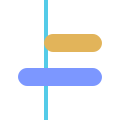
The roll moves toward the fixed cyan line. When a block reaches the line, play it. Each row is one key of your keyboard, drawn small, named when there is room; a black key’s row is shaded darker. Blocks keep their hand’s color on every row.
The small number inside a block is a finger, 1 for the thumb up to 5 for the little finger, not a chord number; chord numbers are in the chord labels. Bar numbers run along the roll’s edge. Keys outside the exercise’s scale are shaded, and empty stretches between the hands fold into a band marked “keys folded”. While you hold a note, a line grows inside its block; played blocks fade back.
Two hands, two colors
Section titled “Two hands, two colors”
Blue is your left hand and gold is your right. The colors are the same on the roll’s blocks, on the keyboard picture and on the bar strip, so one glance tells you which hand a note belongs to.
When both hands share a key, the keyboard picture draws that key split in two, one half in each color, with both finger numbers, and the roll splits that key’s block the same way. The keys carry no L or R letters; the colors say which hand.
Keys of the next chord that you are not already playing show a dashed outline in their hand’s color with their finger number, so you can see where your hand goes next.
Why a black key changes its name
Section titled “Why a black key changes its name”Every black key has two names, such as A♯ and B♭. With Automatic naming, the app uses the name that fits the key you are playing in: in F that key reads B♭, in B it reads A♯.
So the same key under your finger can show a different letter from one exercise to the next; the first time it happens, a card says so. To keep one name everywhere, choose Always ♯ or Always ♭ under Note letters in , or in The numbers.
The keyboard picture
Section titled “The keyboard picture”The keyboard picture shows the part of the keyboard this exercise uses, with the keys the current chord wants outlined in the hand’s color and marked with the finger to use. A C among them carries its octave number, such as C3, so you can tell where on the keyboard the chord sits.
A key fills solid the moment you hold it and keeps its letter and finger number, so you can see which notes of a chord are already down and with which fingers. A wrong key lights red with a cross.
Gray keys
Section titled “Gray keys”Some exercises gray out keys on the keyboard picture. A gray key is one the exercise never plays; every note it asks for, at any point, stays bright, and a dashed key belongs to the chord coming next.
A key’s own notes can be black keys too: A major, for one, uses C♯, F♯ and G♯, so those stay bright. A card explains the gray keys the first time you meet them.
When the roll waits for you
Section titled “When the roll waits for you”
If a chord is not fully down when it reaches the line, the roll stops and waits. Nothing is broken and nothing is scored while it waits. The other blocks dim, and the chord’s blocks stay hollow until you hold each of its notes; then the roll moves on.
The first time this happens, the coach explains it. Afterwards, a chord the roll waited on keeps a dashed outline, meaning the roll stopped there for you rather than that you got it wrong.
Scrolling back
Section titled “Scrolling back”If several wrong keys land while the roll is waiting, it scrolls back a little to the start of a chord and counts you in again with a bar of clicks, so you come back in on the beat. A short message says why, and a back-arrow badge shows for a moment.
Scrolling back never lowers the tempo on its own.
Early, late and the strike dot
Section titled “Early, late and the strike dot”
When a chord lands in time, its block simply fades as played. When it lands clearly early or late, a small cyan dot marks where you actually hit: left of the line is early, right of the line is late. It is a record of where you landed, not a mistake.
If several notes in a row land a hair ahead of the beat, a card names the habit and suggests letting the beat arrive first.
Wrong keys
Section titled “Wrong keys”A wrong key flashes red on the keyboard picture and leaves a red dot on the roll at the key and moment you played it. The bar strip adds a small red dot to that bar.
While the roll is moving, a wrong key changes nothing else: the chord is judged when it reaches the line, not before.
A glow before a tricky change
Section titled “A glow before a tricky change”When a few chord changes in a row have landed late, a soft glow appears on the next chord shortly before it reaches the line. It is a reminder to get your hand ready, and it goes as soon as the chord arrives.
The bar strip
Section titled “The bar strip”
The bar strip is the whole exercise, one cell per bar. Each cell holds small marks for that bar’s notes, and a mark lights up in your hand’s color when you play it: that is you, not a prompt. The current bar is framed, with a thin cyan line for where you are in it.
While nothing is playing, tap a bar to move the roll there and look at it, or slide your finger along the strip and the roll follows bar by bar. You can also drag the roll sideways. When you start again, the run begins from the start.
Clean bars
Section titled “Clean bars”When every note of a bar lands in time, a cyan line appears along that bar in the strip: that one was clean. On a loop, a bar that is clean again round after round shows its line more quietly.
On an iPad wide enough to show the coach alongside, there is no line: instead each mark is bright when its note landed in time, dimmer when early or late, and faint when not played.
Hearing it first
Section titled “Hearing it first”Before you play, tap and the app plays the exercise to you while the roll scrolls along. Nothing is scored, so listen as often as you like.
While it plays, the button shows and a ring fills as the exercise goes by; tap it to stop early. Afterwards the roll goes back to the start, ready for you. only works while no run is going.
Something new today
Section titled “Something new today”Some days an exercise comes with a new way of playing it: more notes to each count, the lowest tone first, one tone at a time, the other hand or both hands. The coach opens with a line starting “New today”, says what changed, and invites you to tap .
While that line is up, plays only the new part, once. Playing a key ends it. The run does not start by itself on these days: tap when you are ready.
Pausing and stopping
Section titled “Pausing and stopping”While a run is going, turns into a pause button. Pausing holds everything where it is and shows “Paused”; tapping it again counts you back in with a bar, then carries on from the same place.
ends the run. With Loop on, stopping after at least one full round brings up the Done card for the rounds you played; stopping earlier ends quietly. Leaving the app in the middle of a run also stops it and silences the sound.
Before you start, while paused, and while the roll waits for you, keys you hold fill cream on the keyboard picture, white and black keys alike, so you see where your hands are.
Opening something pauses the run
Section titled “Opening something pauses the run”Anything that covers the roll — , the tempo slider, The numbers, or the coach — pauses the run the moment it opens, because your hands have left the keys.
When you close it, a bar is counted in and the run carries on from where it was. A pause you chose yourself stays paused.
The coach chat you open with is the exception: the run stays paused after you close it, and carries on when you are ready.
Loop, and back to the shapes
Section titled “Loop, and back to the shapes”makes the exercise go round again instead of ending, for as long as you like. At the end of a round the app may adjust the tempo; when it does, a bar is counted in before the next round.
takes you back to Shapes first for this exercise: the same shapes, with no clock, no roll and no score. When you move on from there, you come back to the timed run. It shows only when the exercise’s shapes fit one hand each.
The tempo chip
Section titled “The tempo chip”
The tempo chip shows the tempo without a number: a dot on a short track, from the easy end of this exercise’s range to the fast end. A small tick marks this exercise’s usual tempo, and the dot pulses on the first beat of each bar.
The app chooses the tempo. It picks up when you are landing chords in time and gives you more room when you are not. An arrow up or down appears on the chip for a bar when it does.
Setting the tempo yourself
Section titled “Setting the tempo yourself”Tap the tempo chip to open the Tempo slider and drag it; the tick shows the usual tempo. The run pauses while the slider is open, your tempo takes effect straight away, and closing the slider counts you back in.
While the tempo is yours, the dot turns gray and appears with the chip. Tap to hand the tempo back to the app; a running exercise then starts again from the beginning.
The click
Section titled “The click”opens the click menu. Turn the click on or off, choose how many clicks make one bar, shown as 2/4, 3/4, 4/4 or 6/4 (the first click of each bar is the strong one), and pick a sound, Wooden or Mechanical. When nothing is playing you hear a sample of the sound straight away.
The click only changes what you hear: the bars on the roll and in the strip follow the exercise itself.
Playing without the roll
Section titled “Playing without the roll”The roll is there while a shape is new; you won’t always need it. Tap to switch it off. In its place you see the whole chord loop, with the chord that is due shown large, or, if you took the app’s offer to go further, just the loop. The bar strip and the keyboard picture stay, so the app still keeps your place.
Your choice is remembered for next time. Tap again to bring the roll back.
When the app offers to take something away
Section titled “When the app offers to take something away”When something on screen has stopped earning its keep, for example you keep playing an exercise cleanly without the roll, the coach may offer to leave it off. Nothing disappears by itself: you are always asked first, and only when the run has stopped.
Try it applies it from the next run; Not now, or tapping outside the card, changes nothing. The card says how to undo it: brings the roll back, and the names switch under Note names in Settings brings chord names back.
When a spot keeps catching
Section titled “When a spot keeps catching”If the roll keeps waiting at the same place, the app eases things in steps, and the coach says what changed and why. First, the tempo drops a notch. In a chord exercise where the tempo can’t come down any further, the coach first offers to take the shape off the clock. Then, in an exercise for both hands, the hand that keeps getting stuck plays alone while the app plays the other one quietly.
If it still catches, the beat stops: the roll waits for every key, however long you take, and the cyan line goes quiet. Once that spot runs clean, the beat comes back at the same tempo and the exercise starts again from the top.
Taking a shape off the clock
Section titled “Taking a shape off the clock”If a chord still keeps slipping away (sooner once the tempo can’t come down any further), the roll stops and the coach names the shape. Find the shape opens it in Shapes first, where nothing is timed. Keep going from here counts you back in where you stopped, and the coach won’t ask again until the next time through.
When you come back, the exercise starts again from the top with the beat, at the same tempo. If the roll still has to scroll back once the easing has run its course, the run ends and the Done card says why.
Hearing the new part mid-run
Section titled “Hearing the new part mid-run”On a day with something new, the first easing is to listen: the roll parks, the coach says why, and the app plays the new part once while shows with a filling ring. Then you are counted back in at the same tempo.
Tap the button to carry on straight away. Once the clip has reached its first chord change, playing a key also ends it.
Same shapes, new place
Section titled “Same shapes, new place”Some exercises sit in a key other than C major or A minor. The shapes are the ones you know; your whole hand simply plays them somewhere else on the keyboard.
The first time such a shape lands clean, a card points this out. The chord names on the roll always follow the exercise’s own key.
Your keyboard’s connection
Section titled “Your keyboard’s connection”shows your keyboard’s link: lit while the app can hear your keyboard, amber when it cannot. Tap it and the app looks for your keyboard again. In a tall window you see words instead: your keyboard’s name and how it is connected, or “Needs your keyboard — tap to rescan”.
Without a connected keyboard or an attached computer keyboard, stays dimmed, but you can always pause or stop a run that is already going.
Wireless headphones
Section titled “Wireless headphones”Wireless headphones play each note a moment after you strike it. If your headphones have not been measured, the app pauses timing judgment: right notes still count and the tempo holds until the sound arrives on time. A tall window shows “Sound is late · timing paused”; a wide screen shows in amber instead. Tap either to read why and what to do about it.
Measured headphones
Section titled “Measured headphones”Measured headphones show “Headphones measured · timing counts”, or a lit on a wide screen, and your timing is judged as usual.
Practice settings
Section titled “Practice settings”opens Practice settings without leaving the exercise. A run that is going pauses, and the sheet says “Paused”. Half the screen stays visible, so changes show straight away on the paused roll.
Here you set Note letters (Automatic, Always ♯ or Always ♭) and choose a Start mode. Tap Back to playing or swipe the sheet away to carry on.
Ask the coach mid-exercise
Section titled “Ask the coach mid-exercise”opens the coach chat without leaving the exercise. A run that is going pauses and stays paused while you talk; close the chat and tap to carry on from where you were. While a bar is being counted in, the button waits until the run has started. On iPhone the chat stands upright, and the roll turns sideways again when you close it.
On an iPad wide enough to keep the coach alongside the roll, the same button opens the coach’s conversation and closes it again; it stays lit while the conversation is open.
Help on this screen
Section titled “Help on this screen”Tap for this screen’s help. The run pauses, and a card lists what each sign and control here means, with a picture of each control exactly as it looks right now. Anything you have not met yet is marked “NOT SEEN YET”.
The card also carries the headings from this chapter that are about this screen. A heading opens in place rather than taking you away, and closes again when you tap it.
More in the manual opens this chapter in full. Swipe the card down or tap outside it to return.
Leaving an exercise
Section titled “Leaving an exercise”Tap to leave the exercise at any time. The run stops and nothing more is recorded for the round you were in.
When the exercise is one of today’s list, the title shows where you are in the list, for example “2 / 5”.
The coach alongside (iPad)
Section titled “The coach alongside (iPad)”On an iPad wide enough, the coach’s conversation sits alongside the practice screen for the whole session, and the coach’s review of your run arrives there too.
You can widen it to fill the window and back, or search the conversation with . opens and closes it; opening it pauses a run. Closing it keeps anything you had started typing.
The Done card
Section titled “The Done card”When a run ends, the Done card appears. While the coach reviews it you see “Reviewing your session…”, then the coach’s words.
Most exercises also show your skill wheel. Its heading names what moved: a skill that grew is named in cyan with an arrow up (like “CHORD SHAPES ↑”) and outlined in cyan on the wheel. When nothing grew, the heading is gray: “NO CHANGE THIS TIME”, or “THIS SESSION” if a skill dipped. A slice with only a thin outline means not measured yet.
The coach says how it went, what dipped and what comes next; what grew is left to the heading. Ask KeyFu for details. Finish always leaves the exercise.
What to do next
Section titled “What to do next”The Done card’s buttons depend on how the run went. After a clean run: Again. If the shapes haven’t landed yet: Repeat this one. If the app would have eased the tempo: Again, slower. If one chord kept the roll waiting twice: Lighter, which plays the rest of today’s session on a simpler form, such as the right hand alone or fewer notes of a big chord.
In today’s list, Next exercise moves on, reading Finish session at the end. Ask KeyFu opens the coach to talk about the run.
Something felt off?
Section titled “Something felt off?”If something about a run seemed wrong, tap Something felt off? on the Done card. It opens an email to support with a short prompt and a technical footer with your device and app version, but no personal data.
After you use it, the app holds off asking you to rate it for a while.
When the app finishes an exercise for you
Section titled “When the app finishes an exercise for you”Once an exercise holds steadily, the app may finish it for you, either at the end or at the halfway mark, and the coach says so on the Done card: finished, not cut short. The freed time goes to something that still needs it.
If an exercise has had its time without settling, the app also stops it, and the coach says it will start you lower on it next time.