Keyboards, headphones and sound
Connecting your keyboard, measuring your headphones, and choosing how notes are named and exercises start.
Finding Keyboard & sound
Section titled “Finding Keyboard & sound”Everything about your keyboard, your headphones and how KeyFu sounds lives on one page. Open Settings with and tap Keyboard & sound.
The row already tells you what KeyFu knows: the size you picked for your keyboard, or the range of notes it has heard you play, or No keyboard recorded yet.
Your keyboard’s connection
Section titled “Your keyboard’s connection”Connection shows the keyboard KeyFu can hear right now, by name. While nothing is connected it reads SCANNING…; tap Rescan after plugging in or waking your keyboard.
A connected keyboard gets a verdict: USB · PRECISE for a cable, BLUETOOTH · LESS PRECISE for a wireless link. There are no figures here on purpose — just what the connection means for you.
Connect a Bluetooth keyboard opens the list of Bluetooth MIDI keyboards nearby; tap one to connect it. With a Bluetooth keyboard connected, the same row reads Bluetooth keyboards, and the list is also where you disconnect it.
USB or Bluetooth
Section titled “USB or Bluetooth”A USB cable is the best way to connect: notes arrive straight away and evenly, so your timing can be judged closely.
Bluetooth works too, and every note you play still counts. Bluetooth delivers notes less evenly, though, so KeyFu gives your timing more room before calling a note early or late. If timing matters to you, use a cable.
Playing on a computer keyboard
Section titled “Playing on a computer keyboard”A hardware computer keyboard (Bluetooth, USB or an iPad keyboard case) plays notes, alone or with a piano keyboard. It rests while you type in a text field or hold Command, Control or Option.
The middle letter row plays the white keys, from middle C on the key right of Caps Lock. The row above plays the black keys, placed as on a piano. On the bottom letter row, the first two keys shift an octave down or up; the next two play softer or louder.
It never shows as connected, yet opens everything that waits for a keyboard. It can’t feel how hard you press, so the soundcheck is skipped and touch ignores it; timing gets Bluetooth’s extra room.
Learning your touch
Section titled “Learning your touch”Every keyboard means something different by “hard”. Until KeyFu has heard yours, how hard you play is simply left out rather than guessed.
With a keyboard connected, Connection shows Learn my touch. Once your touch is learned, the same row reads Recalibrate touch — use it if the keyboard’s feel has changed, or for a new keyboard.
The touch soundcheck
Section titled “The touch soundcheck”The touch page is a short soundcheck. Play a few notes softly, then some hard — the page counts the notes it has heard and tells you what to do next.
When it has heard enough, and enough difference between soft and hard, That’s my touch saves it; then Done, or Do it again. The on-screen keys and a computer keyboard don’t count here — only a real piano keyboard.
Keyboards that don’t sense touch
Section titled “Keyboards that don’t sense touch”Some keyboards play every note at the same loudness, however hard you press. The soundcheck can never finish on one of those.
Tap the button that begins My keyboard doesn’t answer instead. Nothing is saved, and how hard you play simply stays out of the picture on that keyboard.
Your keyboard’s size
Section titled “Your keyboard’s size”My keyboard asks how many keys your keyboard has, from 25 to 88. The size is kept for each keyboard separately, and the page names the one it applies to. With no keyboard connected, the checked size is the one you picked, not one KeyFu detected, and the page says so.
Once a size is picked, exercises the app picks stay within those keys; playing higher or lower widens them. A plan you ask the coach for can still reach further. Until you pick, exercises are written for a full keyboard.
The range KeyFu has heard
Section titled “The range KeyFu has heard”KeyFu also notes the lowest and highest keys you actually play, and shows them as a line such as Heard C2 – C5 from your playing so far.
That range only ever proves which keys you have, never which ones you’re missing. Picking a size starts it afresh.
When a new keyboard connects
Section titled “When a new keyboard connects”When a keyboard without a size connects, a New keyboard notice appears over whatever is on screen, and any running exercise waits.
If KeyFu can read the size from the keyboard’s name, it asks you to confirm — Yes — or offers Choose another size. Otherwise tap Choose size. Later leaves it open: exercises can use the whole keyboard and the on-screen keys follow your playing.
When your keyboard is shifted an octave
Section titled “When your keyboard is shifted an octave”Many keyboards have octave buttons. When one is pressed and you play a note your keyboard size does not have, a Keyboard shifted notice appears and any running exercise waits.
Move with it moves the keys on screen by the same octaves, and later shifts on that keyboard are followed without asking. Not now leaves the keys where they are until the keyboard reconnects. Either way, notes count at the pitch your keyboard sends: in an exercise, play the note shown, wherever it sits on your shifted keyboard.
Where the sound comes out
Section titled “Where the sound comes out”Sound output names where KeyFu’s sound is going right now and what that means for timing.
DIRECT · IN TIME is the device speaker or wired headphones: nothing to do. WIRELESS · DELAYED is headphones that play each note a moment late. WIRELESS · MEASURED is wireless headphones you have already measured with a tap-along.
What “timing paused” means
Section titled “What “timing paused” means”Wireless headphones play each note a moment after you strike it, and your hands naturally follow that delay. Judging your timing against it would be unfair, so on unmeasured wireless headphones timing is paused: your notes still count, only early and late are not judged, and the tempo stays where it is.
During practice a small headphone label says Sound is late · timing paused, or, on a wide screen, shows in amber. Tap either to see the explanation again.
When new headphones connect
Section titled “When new headphones connect”When unmeasured wireless headphones connect, a New headphones notice appears and any running exercise waits. Tap along starts the measurement; Later keeps timing paused on those headphones, and the notice stays away until KeyFu is next started.
In Sound output, the same headphones show a Tap along button for whenever you’re ready.
Bluetooth keyboard with Bluetooth headphones
Section titled “Bluetooth keyboard with Bluetooth headphones”If your keyboard and your headphones are both on Bluetooth, timing cannot be judged fairly and there is nothing to measure. Timing stays paused, the tempo stays where it is, and your notes still count.
A Timing paused notice says so once for those headphones; tap OK. A cable on either the keyboard or the headphones brings timing back.
The tap-along
Section titled “The tap-along”
The tap-along measures how late your headphones play. It shows the headphones’ name and a ring that pulses with each click. Tap Tap along to begin, or Later to leave.
The first clicks are just for listening. Then tap the circle or any key on your piano keyboard right along with the click you hear — like clapping to a beat. A row of dots fills as you tap; tapping the ring works too. Nothing here is scored, and Stop ends it at any time.
After the tap-along
Section titled “After the tap-along”If your taps were steady enough, KeyFu remembers these headphones and timing is judged on them again; tap Done. During practice the headphone label then reads Headphones measured · timing counts.
If the taps were too few or too uneven, Try again gives you one more go. If that doesn’t work either, Done closes the page and timing stays paused on those headphones for now.
Earlier and Later
Section titled “Earlier and Later”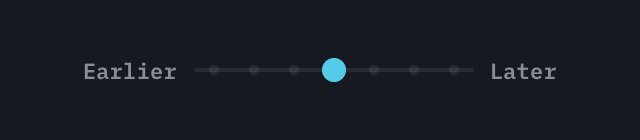
Measured headphones get an Earlier / Later control in Sound output. It moves where KeyFu counts “on time” on these headphones; its center mark is As measured.
If your notes are called late when they weren’t, move it towards Later; if they are called early, towards Earlier. What you hear never changes.
Measuring again or forgetting headphones
Section titled “Measuring again or forgetting headphones”Tap along again repeats the measurement for the headphones you’re wearing. Forget these headphones removes the measurement, so timing is paused on them until you tap along once more.
If, over several exercises, your notes keep landing a little late or early on measured headphones, KeyFu may raise a Timing looks shifted notice during a pause. Tap along measures again; Not now keeps timing counting and the notice stays away until KeyFu is next started.
Chord names with the numbers
Section titled “Chord names with the numbers”Chords in KeyFu are numbered by their place in the key, like 6m. With the name switch in Note names on, the name follows the number, as in 6m · Am; off, the practice screen shows the number alone.
The coach sometimes offers to drop the names once you know a shape by its number. Turning this switch back on is how you undo that, everywhere.
Sharps or flats
Section titled “Sharps or flats”A black key has two names, such as C♯ and D♭. Note names decides which one KeyFu shows, on the keyboard, in chord names and when the coach names a key.
Automatic follows what you’re playing, so the same key can change name from one exercise to the next — the key itself never changed. Always ♯ and Always ♭ keep one name everywhere until you change it. The practice settings behind have the same choice as Note letters.
How an exercise starts
Section titled “How an exercise starts”Session start decides who says “go”. The count-in always plays first.
Press Play waits for . First matching note starts when you play any note of the exercise’s first chord, on the exact key the keyboard picture marks. Start automatically begins by itself a moment after the exercise opens, unless the coach has something new to explain first. Double-tap top key starts when you tap the highest key twice, quickly — handy when the screen is out of reach. The highest key is the top of the keyboard size you picked in My keyboard, or, until you pick one, the highest key KeyFu has heard you play.
Changing the start mid-practice
Section titled “Changing the start mid-practice”You don’t have to leave an exercise to change how it starts. The practice settings behind have Start mode with the same four choices, and the exercise stays paused while the sheet is open.
The piano you hear
Section titled “The piano you hear”Every note KeyFu plays is a recording of a real grand piano, sampled note by note at many levels of touch. With a keyboard connected, your playing sounds through that piano anywhere in the app, not only in exercises.
The piano recordings and who made them are credited in Settings under Support & legal, Type, sound & licenses.