
Troubleshooting
What to do when the keyboard isn’t heard, there is no sound, or timing feels off — and what the system notices mean.
The keyboard isn’t found
Section titled “The keyboard isn’t found”While KeyFu hears no keyboard, setup says “Searching for your keyboard…” and Settings shows SCANNING…. Check that the keyboard is switched on and the cable is plugged in at both ends. On an iPhone or iPad, a USB-to-host adapter works.
A Bluetooth keyboard doesn’t turn up by itself: tap Connect a Bluetooth keyboard and pick it from the list. If KeyFu says it isn’t allowed to use Bluetooth, tap Open Settings and allow it.
To look again, open Settings, then Keyboard & sound, and tap Rescan in Connection. Don’t reinstall KeyFu to fix a connection: reinstalling erases your practice history.
The keyboard drops out while practicing
Section titled “The keyboard drops out while practicing”On the practice screen, the connection is lit while KeyFu can hear your keyboard and changes color when it can’t. Tap it to look for the keyboard again. Some layouts also show “Needs your keyboard — tap to rescan”, which does the same.
Without a keyboard (or an attached computer keyboard), Play and Resume stay unavailable until one is back. Pause and always work, so you can still end a run.
Today’s practice is grayed out
Section titled “Today’s practice is grayed out”If the Today’s practice card reads “Needs your keyboard — this one measures your playing”, KeyFu remembers that you said you don’t have a keyboard yet.
Connect one and the card opens up by itself: a connected keyboard, or an attached computer keyboard, always counts, whatever you said during setup.
“New keyboard”
Section titled ““New keyboard””When you connect a keyboard KeyFu hasn’t been told the size of, a New keyboard notice asks for it. If the size can be read from the keyboard’s name, confirm it with Yes or pick Choose another size; otherwise tap Choose size.
Later leaves the size open for now. Until you choose, exercises can use the whole keyboard range and the on-screen keys follow your playing. Settings has the same choice under Keyboard & sound.
When a notice appears
Section titled “When a notice appears”Notices about your keyboard and headphones appear over whatever screen is open, as soon as KeyFu notices the change. A running exercise pauses while one is up and carries on once it is closed.
They never interrupt setup or the sign-in screen; KeyFu asks once you are in the app.
No sound
Section titled “No sound”KeyFu’s piano isn’t silenced by the silent switch, so if you hear nothing, check the volume and where the sound is going: speaker, wired headphones or wireless ones.
KeyFu takes over the sound while you use it, so music from another app stops. Wireless earbuds shared with another device may switch over to this one. While KeyFu isn’t the app on screen, it makes no sound.
The sound starts late or cuts out
Section titled “The sound starts late or cuts out”Just after wireless headphones connect, the sound can take a moment to arrive. KeyFu waits briefly and then starts anyway, so the first clicks of a count-in may be silent.
If headphones disconnect mid-session, KeyFu sets up the sound again for whatever takes over, such as the device speaker.
Timing on a Bluetooth keyboard
Section titled “Timing on a Bluetooth keyboard”Bluetooth delivers notes a little unevenly, so on a Bluetooth keyboard the connection reads BLUETOOTH · LESS PRECISE. Your notes still count in full; timing is judged with more leeway.
If the connection gets so uneven that even that leeway isn’t enough, the coach tells you and stops judging your timing until it settles; right notes still count and the tempo stays where it is. When it’s steady again, the coach says so and timing counts again.
If timing matters to you, use a USB cable: the line then reads USB · PRECISE.
Wireless headphones: timing paused
Section titled “Wireless headphones: timing paused”Wireless headphones play each note a moment after you strike it. On headphones KeyFu hasn’t measured yet, timing is paused: your notes still count, and the tempo stays where it is. You still hear everything as normal.
The practice screen shows Sound is late · timing paused, or in amber on a wide screen. Tap either to see the explanation again.
“New headphones” and tapping along
Section titled ““New headphones” and tapping along”
With new wireless headphones, a New headphones notice offers Tap along: tap the circle or any key in time with the click you hear, like clapping to a beat. Nothing is scored. KeyFu then knows how late these headphones play, and timing counts on them from then on.
Later keeps timing paused, and KeyFu won’t ask about these headphones again until it next starts. Keyboards, headphones and sound has the full tap-along.
Measured headphones
Section titled “Measured headphones”Once you have tapped along, the practice screen reads Headphones measured · timing counts whenever those headphones are connected. KeyFu remembers each pair of headphones separately.
In Settings under Keyboard & sound, Sound output offers Tap along again and Forget these headphones.
“Timing paused”: both on Bluetooth
Section titled ““Timing paused”: both on Bluetooth”If your keyboard and your headphones are both on Bluetooth, timing can’t be judged fairly, even after tapping along. A Timing paused notice says so once for those headphones; tap OK.
Your notes still count and the tempo stays where it is. A cable on either the keyboard or the headphones brings timing back.
“Timing looks shifted”
Section titled ““Timing looks shifted””On measured headphones, if your notes keep landing a little late, or a little early, in the same direction, KeyFu may show Timing looks shifted when you stop. It never appears while you are playing.
Tap along measures the headphones again. Not now keeps timing counting as it is, and KeyFu won’t ask again until it next starts.
Timing feels a little off
Section titled “Timing feels a little off”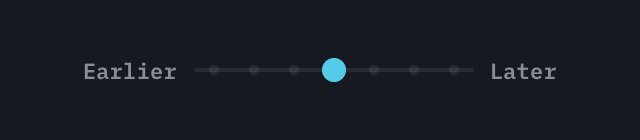
If KeyFu calls your notes late on measured headphones when you weren’t, tap Later; if it calls you early, tap Earlier. Each tap moves it one small step. What you hear never changes, only where KeyFu counts on time.
The control is in Settings under Keyboard & sound, in Sound output. As measured means it is back where the tap-along put it. See Keyboards, headphones and sound.
Soft and loud notes feel misread
Section titled “Soft and loud notes feel misread”KeyFu learns how hard you press separately for each keyboard. If you skipped the soundcheck, changed keyboards, or the feel seems off, open Settings, then Keyboard & sound, and use Learn my touch or Recalibrate touch.
Until a keyboard’s touch is learned, how hard you play isn’t counted.
Reporting a problem
Section titled “Reporting a problem”Something not working? You can send a problem report from the app. There are three ways in: Report a problem in Settings, Report a problem in the practice settings while an exercise is paused, and a gesture that uses your keyboard’s lowest and highest keys. Hold both together for a second and the report opens.
The gesture only works once KeyFu knows your keyboard’s size, and it also works when you’ve shifted both ends by whole octaves. The first time, the coach tells you which two keys it means.
What a report sends
Section titled “What a report sends”Pick what kind of problem it is (Sound, Timing, Display, Coach, Crash/freeze or Other) and say what happened. Before anything leaves your device, the sheet shows exactly what gets sent: a screenshot of your screen with coach messages, typed text and account details covered, plus the app build, device model and iOS version.
Attach the last 2 minutes adds what happened just before: screens you opened, how your keyboard and sound output are connected, app errors, and how each exercise pass went. It never includes the notes you played, what you tapped, device names, chat text or anything you typed. Switch it off if you’d rather not send it.
Your report and your privacy
Section titled “Your report and your privacy”Reports are not linked to your account. If you add your email, you get a receipt with the report number. The address is kept apart from the report, used for nothing else, and deleted with it.
After sending you see a report number like K7Q-4M2. Keep it: to have a report deleted, write to [email protected] and quote the number. Reports are deleted after 90 days.
Reporting while offline
Section titled “Reporting while offline”Offline? The report is saved on your device and sends by itself when you’re back online. The next time you open a report, KeyFu shows you the number the earlier one got. Signing out or deleting your account clears any report that hasn’t been sent yet.